Why you might want it
Plenty of games use the Control key. You hold Control to sprint, aim or use a special move, then you click to attack. macOS decides you meant to right click, so your character blocks, a menu pops open, or nothing happens at all. There is no setting in macOS to switch this off.
CtrlLeftClick fixes exactly that, and nothing else. Your right mouse button keeps working normally, and the Control key still works as Control everywhere.

Install it
-
Download and open the file
Click Download for macOS above. When it finishes, open
CtrlLeftClick-1.0.dmgfrom your Downloads. -
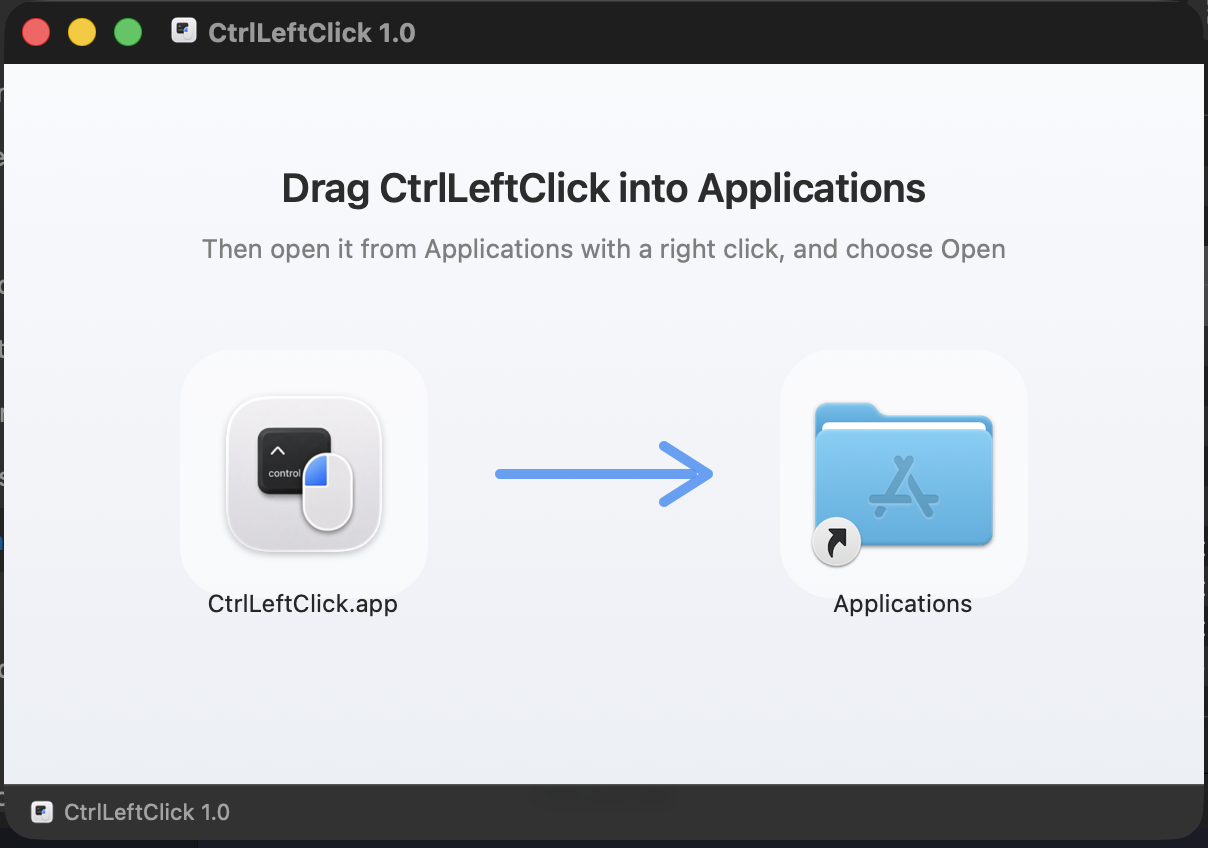
Drag the app into Applications
A window opens with the app on one side and an Applications shortcut on the other. Drag one onto the other.
-
Open it, and let macOS through once
Open your Applications folder and double click CtrlLeftClick. macOS will block it and say it could not verify the app is free of malware. This happens to every app that is not sold through the App Store. Letting it through takes a few seconds and you only do it once.
On macOS 15 Sequoia and newer, including macOS 26
- Click Done in the message. Do not click Move to Trash.
- Open System Settings, go to Privacy & Security, and scroll down to the Security section.
- Next to the line about CtrlLeftClick being blocked, click Open Anyway.
- Confirm with Touch ID or your password, then click Open Anyway once more.

On macOS 13 and 14
Right click CtrlLeftClick in your Applications folder, choose Open, then click Open again in the box that appears.
Why does this happen? Apple charges developers for a certificate that removes this warning. CtrlLeftClick is free and does not have one yet, so macOS asks you to confirm instead. The full source code is public if you would like to check it or build it yourself.
Allow it to see your clicks
macOS does not let any app read mouse clicks unless you allow it, so there is one short step left.
-
Open Accessibility settings
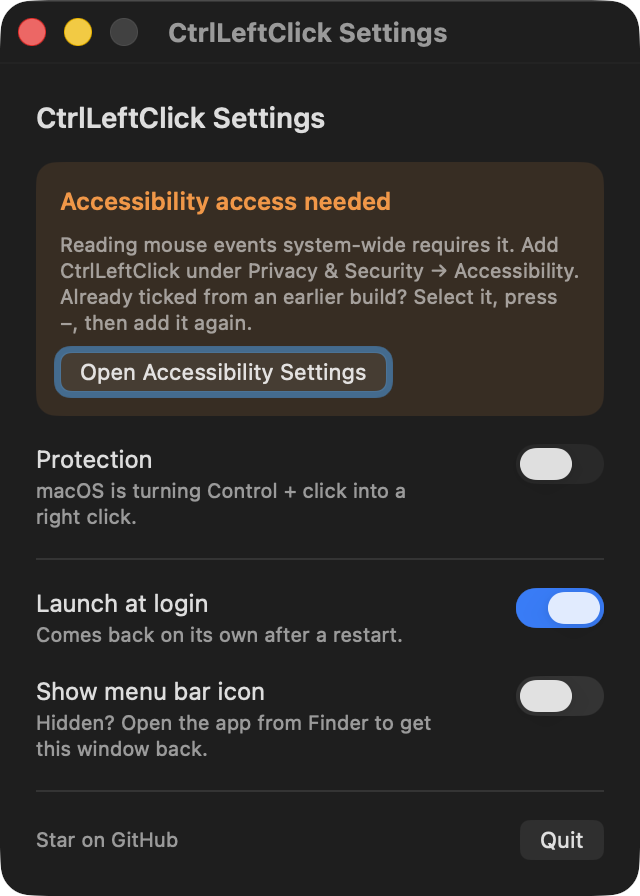
When the app starts, a window appears with an orange note. Click Open Accessibility Settings.
-
Switch CtrlLeftClick on
System Settings opens on the Accessibility list. Find CtrlLeftClick and turn its switch on.

That is everything. Protection starts a second or two later, and you do not need to restart anything.
Already in the list but nothing happens? Click CtrlLeftClick in that list, press the minus button to remove it, then add it again.
Using it day to day
The app lives in your menu bar. Click its icon to open the settings.

| Setting | What it does |
|---|---|
| Protection | The main switch. When it is on, Control plus click stays a left click. |
| Launch at login | Starts the app by itself when you turn your Mac on. It is on by default. |
| Show menu bar icon | Hides the icon for a tidier menu bar. To get the settings back, open CtrlLeftClick from your Applications folder. |
While protection is on, holding Control and clicking no longer opens the right click menu anywhere, including in Finder. That is the whole point of the app. Switch Protection off or quit the app whenever you want that back.
Questions
Does it slow my Mac down?
No. It only looks at mouse clicks, so it uses almost nothing.
Does it send my data anywhere?
No. The app has no internet code in it at all. Nothing is collected or uploaded.
Does it read what I type?
No. It never looks at the keyboard, only at mouse buttons.
Then why does it ask for Accessibility permission?
That is simply the permission macOS asks for whenever an app deals with mouse or keyboard input. There is no smaller permission to ask for.
Does my right mouse button still work?
Yes. Real right clicks are left alone, and the Control key still works as Control.
I cannot find the icon in my menu bar.
If you use an app like Ice or Bartender that tidies your menu bar, it may have hidden the icon. Move CtrlLeftClick to the visible section in that app. You can always open the settings window by launching CtrlLeftClick from Applications.
Will it still work after I restart?
Yes, as long as Launch at login is on. Your settings and the permission are remembered.
How do I uninstall it?
Quit it from its settings, then drag CtrlLeftClick from Applications to the Bin. You can also remove it from the Accessibility list in System Settings.